
Questions & answers
Browse by topic or search for answers about the five apps, pricing and managing your team.
View demo screenshots
Getting started
What can I do in PhoenusHub?
Use Cashline for money and documents, CRM for customers and sales conversations, Stock for purchasing and inventory, Planning for tasks and client progress, and Quarterday for time and labour costs. You can start with the app that matches today’s work.
Do I need a separate account for each app?
One personal sign-in gives you access to the companies you belong to. Inside a company, the app switcher opens the apps your role allows. Check the company name before entering records.
How do I sign in if I don’t have a password?
Use an available sign-in provider or request a secure email link on the sign-in page. Open the link within ten minutes. If it expires, request a fresh one using the same email address.
Why am I being asked to wait for another sign-in link?
Several link requests in a short period can trigger a wait. Check your inbox and spam folder for the last email. If you still need a new link, request it after the wait shown on the sign-in screen. If the screen gives no time, try again later.
I received an invitation. Should I create another company?
Open the invitation and sign in with the email address it was sent to. Accept it to join the existing team. Create a company only when you want a separate workspace and subscription.
What do I need to set up a company?
Have the legal company name, country, base currency and time zone ready. You can add a trading name and choose an initial team size and preferred billing cycle. The company owner or billing administrator reviews the paid subscription separately.
Can I use one sign-in for several companies?
Yes. Choose the company you want to work in from your available companies. Each has its own membership, records and billing. If a record seems to be missing, check the company first.
How do I move between apps without losing an edit?
Use the app switcher in the shared header. If the app asks you to finish a change, save or close the open edit or capture before switching. Check the selected company when you arrive.
Can I use PhoenusHub on a phone or computer?
Open the website in your browser. The platform section on the homepage lists the native download options and their availability. On iPhone, use the download link when it appears there.
Check platform availabilityHow do I change the language?
Use the language selector on the public website, or open Language in company settings once signed in. The web interface and this Q&A are available in English and Simplified Chinese.
Can I change the profile picture my teammates see?
Open your profile, choose Change photo, select an image and adjust the crop before saving. The profile photo is shared across your apps. You can remove it from the same panel.
Are the examples on this page taken from a real company’s books?
The screenshots come from the private Northstar Studio demo. They show the real apps with fictional projects, people, documents and amounts. Your company’s own records appear only after you sign in with the appropriate access.
How do I choose which apps appear at the bottom of my iPhone?
In the iPhone app, open your account and choose Customize navigation under Your services. Turn shortcuts on or off and drag them into the order you want. You can still open a hidden service from your account, or use Restore default order to start again.
Can I turn off vibrations or button sounds on iPhone?
Open your account and look under Preferences, then Feedback. Haptic feedback controls vibration for supported interactions. Interface sounds has its own switch, so you can keep one and turn the other off.
What should I do if an iPhone save is awaiting confirmation?
Reconnect and select the company where you made the change. Tap Review beside the pending-save notice, then Check and retry save for that entry. This checks the original request so you can resolve it without entering the same change again.
I know I was invited, but I can’t find the email. Can I still join?
Sign in with the invited email address, open View my invitations and choose Review invitation beside the company name. If no invitation appears, check the signed-in address, switch accounts if needed, or ask the administrator to invite the correct address.
Plans, trials & billing
Who pays for access when I join a team?
The company pays for access to the five customer apps. Invited teammates use their own sign-in and do not buy separate subscriptions. The company owner or a billing administrator reviews the paid team and authorizes payment.
How long is the company trial, and do I need a card?
A new company receives a 14-day trial. You can invite your team during the trial without entering a payment card. Starting the trial does not authorize a future charge.
Start a company trialHow much will my company pay?
Starter costs $39 per month or $439 per year for one person. For 2–10 people, Team costs $37 per person per month or $399 per person per year. Published prices are in USD and include VAT. Before payment, Billing shows the company, selected team, billing cycle and total for you to confirm.
See company plansCan we pay annually, and where can I see the total?
Switch the pricing cards to Annual to see the yearly amounts. In Billing, choose the people who need paid access and review the full annual total before authorizing payment.
Do I pay for each app separately, or for each company?
The published company plans include the customer app suite. Each company has separate billing, even if the same person belongs to several companies. Individual team members see the apps and records permitted by their role.
What happens at the end of the trial?
The trial does not automatically charge a card. To continue paid use, the company owner or billing administrator opens Billing, reviews the team and full price, and confirms payment. Trial expiry alone does not delete company records.
Can usage or a team invitation create an unexpected charge?
Inviting a colleague during the trial does not authorize payment. Before subscribing, review the paid team and total in Billing. Usage does not automatically change the published company price.
Who processes payments, receipts and refunds?
Paddle is the merchant of record for subscriptions. Use the company billing controls to manage the subscription and keep the Paddle payment reference for receipt or charge questions. Cashline customer invoices are separate business records.
Can I cancel renewal and keep using my paid time?
Yes. Cancel renewal through the available billing controls. You retain the remainder of the paid term. If you need help finding the subscription, contact support with the billing email and payment reference.
Cancellation and refund termsHow do I request an annual subscription refund?
Email support@phoenushub.com within 30 days after annual payment. Include your account email and, if available, the payment reference. You can request a full refund without giving a reason. See the Refund Policy for the complete terms and how to report an incorrect charge.
Read the refund policyWhat changes when our team grows from 10 people to 11?
Teams of 2–10 people can use self-service checkout. For 11 or more, choose Contact us for setup in Pricing and include your team size. The Team rate is the same: $37 per person per month or $399 per person per year, including VAT.
See team pricing and setupWhat if a subscription payment fails, or I need more seats?
The billing owner or billing administrator can open Billing. For an existing subscription, use Resolve billing in Paddle for a past-due payment or Increase seats in Paddle when your company exceeds its purchased seats. If the portal is unavailable, contact support.
Will a new published price change my existing subscription?
Existing subscriptions keep their agreed billing arrangements. Check your own subscription in Billing for the plan, paid seats, renewal date and any scheduled cancellation. Pricing on the public page describes the current offer.
Team & permissions
Who can invite colleagues and set their roles?
In company settings, open Team & access, then Invitations. An owner or administrator can enter a colleague’s email and choose the offered role. The invitation is tied to that email address.
Why can’t my colleague use their invitation?
Check the recipient address, the account they signed in with and the invitation’s status. Invitations expire after seven days. Ask an administrator to revoke an incorrect invitation or issue a fresh one if it expired.
Why can someone open an app but only read its records?
Workspace membership, access to a company and permission to change records are separate. Check the active company and ask an administrator to review the person’s app and action permissions before changing their workspace role.
Can I let someone manage billing without transferring ownership?
The billing owner can open Members, choose an active teammate and grant billing access. Review the confirmation. A billing administrator can review and authorize company payments. Granting access alone creates no charge.
How do I hand billing ownership to a colleague?
In Members, the billing owner can choose an active administrator and select Transfer billing ownership. Review the named recipient before confirming. The former owner becomes an administrator.
What happens when someone leaves the team?
An administrator can deactivate the member in Team & access. This stops their workspace access and releases the seat while preserving their records, ownership and history. Use Reactivate to restore access when appropriate.
Why are there fewer seats to invite than I expected?
In Invitations, compare active members and pending invitations with purchased seats. Pending invitations can reserve capacity. Review old invitations and deactivate people who have left before inviting another person.
How do I connect information between Cashline, CRM and Stock?
Open Business connections in company settings. Customer information connects across Cashline and CRM when both are available to you. An administrator can enable Cashline supplier suggestions for Stock in the selected company. Each app still checks the member’s permissions.
How do I give someone access to just one company’s records?
In Team & access, open Company access and select the active member and company. Assign the person to the company, select the actions their job requires and save. Assignment alone grants no individual actions. An administrator’s access is managed through their workspace role.
Cashline transactions & accounting
What can I see in Cashline Overview?
Start with the selected company’s cash balance, receivables, payables and net cash flow. Choose a figure to see the underlying records, or open Needs attention to review a document, compare duplicates, match a statement line or act on an approval assigned to you.
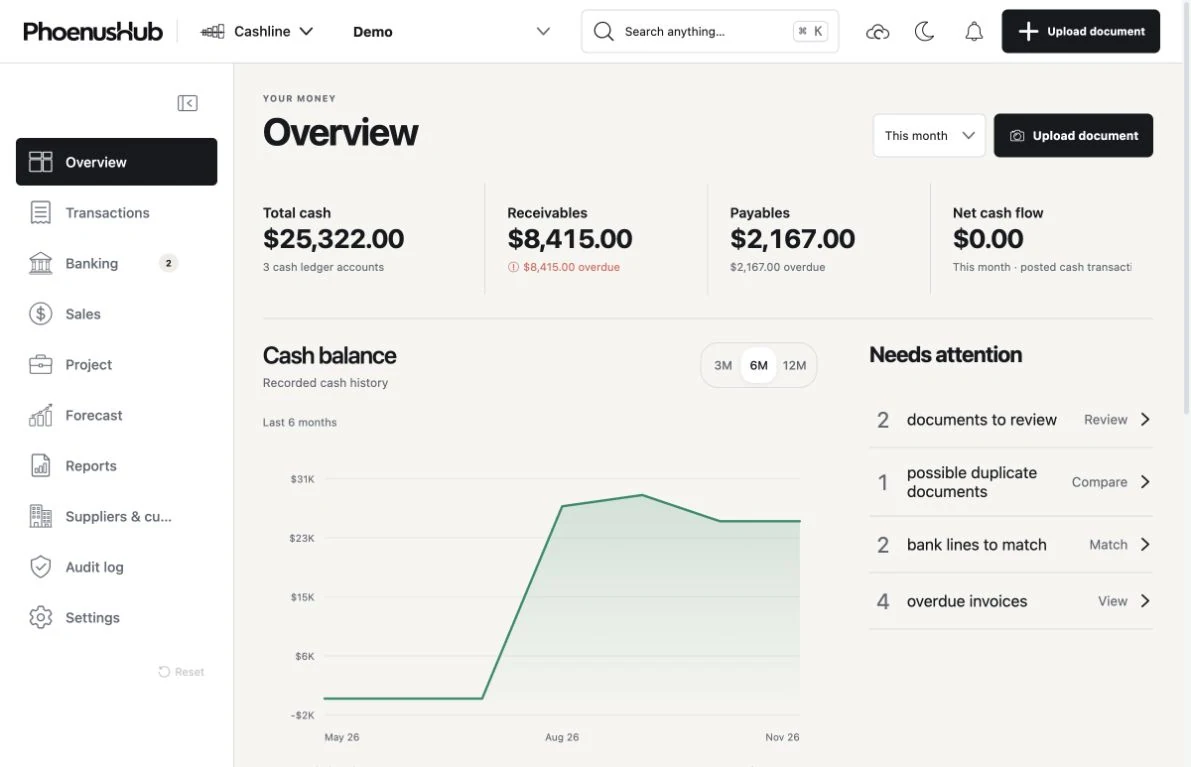
How do I find one transaction among hundreds?
Open Transactions and choose All, Needs a detail, Unpaid bills, Possible duplicates, Processing or Recorded. Search by name or reference, then narrow the result by date, counterparty, direction, record type, currency, category or project. Clear the filters if a known record is missing.
How do I enter an expense or income by hand?
In Transactions, choose New transaction. Enter the date, amount, currency and accounting treatment. For an expense, select Already paid or Unpaid bill. For income you have received, select the receiving account. For money a customer still owes, create an invoice in Sales.
What does saving a draft do? When do balances change?
Save draft keeps an unfinished transaction for later. Open it to check the date, account, exchange rate and supporting original. Review the debit and credit preview, then choose Post draft when you are ready for it to enter the ledger.
How do I correct a posted transaction?
Open its details and choose Review correction when available. Enter a reversal date in an open period and a reason, then review the reversing entry. The journal shows the original and its opposite entry, so you can trace the correction before recording a replacement if needed.
How do I recover an accidentally removed document or transaction?
Open Transactions, then Trash. Search for the item, inspect its related originals and recovery deadline, and choose Restore. Cashline checks your access, the accounting period and linked records. Eligible items and their available originals can be recovered during the 30-day window.
Can Cashline record a regular monthly expense?
In Transactions, open Recurring transactions and create a schedule. Set the counterparty, expense and payable accounts, amount, currency, monthly day and first date. Each due date records an unpaid expense. Record the settlement separately when you pay. A short month uses its final day.
How do I pause a recurring expense or record a missed month?
Open the schedule to edit future entries, pause, resume or end it. To cover an earlier month, choose Review unrecorded dates and select the eligible dates yourself. Already recorded dates and locked periods are blocked. If the company time zone changed, review the schedule before automatic posting resumes.
Can I organize transactions with my own categories and rules?
In Transactions, open Categories & rules. Create categories and subcategories, choose their order and archive ones you have retired. A rule can match a supplier, keywords, money direction, amount, currency or posting date. Test it against existing entries before activating it. The first matching active rule wins.
Why did a category change after I chose it? Can I turn off AI categorization?
An active matching rule takes priority over a manual or AI choice and can apply to existing transactions. Edit or pause the rule to use a different category. A settings manager can turn off AI auto-categorization for new transactions in Company profile. You can find entries awaiting a category under Uncategorized.
Why are sales and cash received different in my totals?
A posted sale can create a receivable before the customer pays. Transactions totals separate revenue, expense cost, cash received, cash paid and other posted movements. Check the date filters and open the journal for the entry. Loans, deposits and transfers can move money without contributing to profit.
What can I export for my bookkeeper?
Filter Transactions and choose Export for a CSV of matching entries. If you can export originals, select Include original documents for a ZIP with the CSV, linked files and a separate folder for matching unposted documents. For account-level debits and credits, open More, then Accounting journal, filter it and export its CSV.
How do company currency, tax and period settings affect my books?
In Cashline Settings, authorized users can review the chart of accounts, supported currencies, fiscal year, default tax settings and accounting periods. Enter the transaction’s currency and the required exchange rate for a foreign amount. A locked period blocks edits and corrections can be recorded in an open period.
Can I search Cashline if I don’t know whether something is an invoice, a document or a payment?
Use Search Cashline in the web header, or press Command-K on Mac or Ctrl-K on Windows. Type at least two characters of a name, reference or filename. Results include permitted transactions, documents, invoices, purchase orders and contacts in the selected company. Choose a result to open it.
Can I change the order of the Cashline sidebar?
On the web, expand the sidebar and drag the handle beside a section. With a keyboard, focus the handle and use Alt with an arrow key. Use Reset navigation order to return to the default arrangement.
Scanning & document review
How do I upload receipts, invoices or several files at once?
Open Transactions and choose Add documents. On the web you can select up to 50 nonempty files, each up to 50 MB. PDF, JPEG and PNG originals are suitable for background reading. Check each upload’s progress before leaving, then look in Activity for its result.
How do I scan a multi-page invoice on my phone?
Open the document scanner, fit all four corners in the frame and hold steady or take the photo manually. Inspect each page, adjust the crop or retake it, then add the next page to the same document. Finish the scan when every page is in the right order.
Which details does Cashline read, and what if it gets something wrong?
The document reader looks for the type of document, buyer and seller, date, reference, line items, tax, total, currency and evidence of payment. Open its original beside the extracted details. Correct a misread amount or answer the question in Needs a detail before relying on the record.
Can I leave a document review and come back later?
Once the originals are stored and reading is underway, you can follow progress under Transactions, then Processing. Check Needs a detail for a question, Possible duplicates for a comparison, and Recorded for completed entries. If an upload failed, use its Retry action and check the existing item before uploading a second copy.
I have an invoice and a receipt for the same purchase. How do I avoid recording the cost twice?
Open the receipt review and check the suggested purchase against the supplier, reference, date and amount. Link the receipt as evidence of that purchase or its payment when they match. If one receipt covers several purchases, use Allocate receipt across purchases and check each amount against the original.
How do I decide whether two scans are duplicates?
Open Possible duplicates and compare both originals, including the reference, date and total. If they describe separate purchases, choose Keep both documents. If one is a duplicate, review which original will be kept and confirm your choice. You can defer the decision if you need more evidence.
Can I keep a delivery note, a revised invoice or other evidence without adding another charge?
Open the document review and check the available linking options. Choose the existing purchase or attach the file as context for a sales invoice, and record why it belongs there. A superseded sales invoice can be retained as historical evidence. Check the linked originals from the saved record.
How can I see the original after a transaction is recorded?
Open the transaction and expand Originals. If several files are linked, select the one you need and inspect the full image or PDF. Viewing or downloading requires access to the company’s documents. A transaction entered by hand can have an empty Originals section.
I lost my connection while uploading scans on iPhone. Do I need to scan them again?
Return to Cashline in the company where you began the upload and reconnect. Check the existing upload card first. If it shows Reconnecting, leave it to retry. If it offers Retry upload, use that control. Once the original is stored, follow its processing result in Transactions.
Sales, invoices & payments
How do I turn a quotation into an invoice?
In Sales, create a quotation for the customer, add products or one-time items and save the draft. Issue the quotation, mark it accepted when the customer agrees, then choose Create invoice from quotation. Review the dates and draft invoice. Issue & post records the sale and opens the receivable.
Can I create an invoice directly and print it as a PDF?
Open Sales documents, create an invoice and choose the customer, dates and currency. Add quantities, prices and taxes, check any discount or fee, and preview it. Save a draft or choose Issue & post when ready. Open the invoice and use Print / PDF to print it or save a PDF for delivery.
Can I reuse products and customize the documents customers receive?
Save your item description, unit, price, currency, tax rate, SKU and optional photo under Sales, then Products. In Document settings, a settings manager can choose an accent color, logo, stamp and signature and specify which document types use them. Issued documents retain the appearance used when they were issued.
How are quotations, invoices and receipts numbered?
A number is assigned when you create the document. A settings manager can review the prefix and next number in Document settings. The counter must move beyond earlier reservations. Changing a prefix does not restart the sequence, and voiding a document keeps its number in the history.
My customer paid part of an invoice. How do I record it?
Open the invoice in Sales and choose Record payment. Use a receipt or enter the amount received, actual payment date and receiving account in the payment currency. Review the remaining balance and confirm. When another instalment arrives, record that payment against the same invoice.
I already recorded a payment. How do I attach its receipt or produce one for a customer?
Open the invoice, attach the original receipt and select the existing payment when the amount, date and account agree. To issue the customer a receipt, choose New receipt in Sales documents, select the recorded payment, review and print it. Reprinting the receipt keeps the same payment record.
Which supplier bills still need payment, and how do I record a partial payment?
Open Transactions, then Unpaid bills. Select a bill to see its due date, original total, paid amount and remaining balance. After paying your supplier, choose Record a payment, enter the amount and actual account, and add a receipt if available. Any unpaid balance stays in the list.
Does recording an invoice payment actually transfer money?
Use your bank or payment provider to send or receive the money. Cashline records what happened. Choose the actual account and payment date so bank reconciliation and cash reports reflect that movement. If a save result is uncertain, use Check payment result or retry the same payment before entering it again.
What does “Paid by invoice assumption” mean?
Where the company enables invoice-based payment recording, an eligible uploaded invoice can support an explicitly labeled payment with no confirmed account. Pro formas and invoices explicitly marked unpaid or partly paid are excluded from automatic treatment. Confirm the actual payment date and account when evidence arrives so the bank or cash balance reflects it.
Can I bring in old sales invoices and receipts? Why is a historical balance unconfirmed?
Where you have import access, open Import history from Sales. Choose the reviewed sales history file and matching originals, preview new, existing and held items, then confirm the import. Incomplete payment evidence is labeled. Such historical invoices are excluded from overdue and collection projections until the settlement history can be established.
How do I email a sales document from the iPhone app?
Open the saved sales document and choose Export document, then Prepare email draft. Check the recipient, message and attached PDF, then export the draft. Open it in your email app and send it when ready. You can also choose Save PDF or Share PDF from the same menu.
Banking, cash & suppliers
Can I connect my bank or import a statement?
Banking works with statement files you supply. Add or select the bank account and choose Import statement. Supported formats include CSV, TSV, TXT, OFX, QFX, MT940 and CAMT.053. Inspect the detected fields or map columns, review the preview and confirm the import. The original and mapping history remain attached.
How do I reconcile a statement line? What if I confirm the wrong match?
In Banking, open To review and select a statement line. Compare the date, amount, currency and account with a recorded payment before confirming the match. Importing flags possible duplicate lines and leaves matches for review. Use Unmatch to undo a link, or Restore to return an ignored line to review.
How do I count petty cash across different locations?
Create a cash ledger account for each location, then open Cash & petty cash and choose Count cash. Select the location and date, enter the physical amount and review the difference against the ledger. A discrepancy can post a cash adjustment, so check the count and notes before confirming. Posting requires permission and an open period.
Where can I see everything we bought from a supplier or sold to a customer?
In Cashline, open Suppliers and choose Suppliers or Customers. Search the name and open the profile for transactions, documents and bills or invoices. Supplier histories also include inventory orders when available. Include archived and reversed records when investigating an older amount.
Can we maintain one supplier profile and combine duplicate names?
A validated bill can build a supplier’s purchase history. Authorized staff can maintain names, aliases, people, addresses, contact channels, tax and bank details. Review a possible duplicate, choose the name to keep and confirm the merge. Authorized copying between companies lets you choose profile details without carrying over orders or balances.
How do I compare suppliers before committing to a purchase?
Open Suppliers, then Purchase orders and New purchase. Choose an item, collect the supplier offers and review their evidence, prices, minimum quantities, freight, payment terms and lead times. Save a comparison draft and select a supplier when ready. A draft is a buying decision in progress. Record the actual bill and payment separately.
Who can approve a purchase or see why a financial record changed?
Approvals assigned to you appear in Needs attention or Purchase orders. An authorized approver can inspect the amount and approve or reject the request. Open Cashline’s Audit log to search recorded events by user and activity, see who acted and when, and print the filtered history if permitted.
Reports, projects & forecasts
Which financial reports can I run or share?
Open Reports and search the catalog. Financial statements include profit & loss, balance sheet, cash-flow statement, trial balance and general ledger. You can also run cash position, receivable or payable aging, budget vs actual, inventory valuation, project profitability, tax & VAT, bank reconciliation, foreign-currency exposure and audit activity. Choose the period and use Print / PDF to share a copy.
Who owed us money on a past date? What did we owe suppliers?
Choose Receivable aging for customers or Payable aging for suppliers, then set the cutoff date. The report uses posted movements through that date, including settlements and reversals. It separates current and overdue balances and flags unallocated amounts or incomplete history that needs investigation.
How is the VAT summary calculated, and does Cashline file it?
The Tax & VAT summary totals posted tax-account lines in company currency and accounts for reversals and other tax adjustments. Review the dates, exclusions and supporting records, then export the report for the person responsible for your return. Preparing and filing the return is a separate step.
Can I exclude a particular supplier or customer from one report?
With permission, open the supplier or customer profile and choose Exclude from a report. Pick the specific reports and save. Their report views and exports will apply that choice. You can still open the underlying transactions and audit the company’s books.
How do I see profit and supplier spending for one project?
Tag relevant transactions with the company project. Open Project to inspect linked activity and supplier spend, then run Project profitability for the reporting period. The report uses posted income and expense lines. Expected revenue, budgets and payments serve different purposes and are shown separately from posted profit.
What do the budget, stock valuation and currency reports actually measure?
Budget vs actual compares saved budgets with posted expenses in the overlapping dates. Inventory valuation uses posted inventory-asset balances at the cutoff and labels current stock quantities separately. Foreign-currency exposure uses recorded carrying values for cash, receivables and payables. Look up current exchange rates separately if you need a market valuation.
How does Cashline estimate future cash on the Overview chart?
The solid line shows recorded cash. Turn on Show forecast to see the automatic outlook as a dashed line, with a range when enough history is available. Inspect an individual point for its date and value. The chart excludes unassigned payments and shows when the saved outlook was prepared.
Can I build my own forecast, compare scenarios or use my voice?
Open Forecast on a laptop. Enter amounts by category or project future months from available history, then compare scenarios with different amounts of money in and out. In graph view, use the microphone for a supported spoken adjustment, review the change, then save the named forecast. Phones can display saved forecasts. Editing a forecast changes the plan only.
CRM · Customers & sales
Where do I see who needs a follow-up today?
Open CRM Overview for the next follow-ups and the totals for contacts, companies, open opportunities and open follow-ups. Open Follow-ups to search the full list or change the view.
Should I add a contact, a company or an opportunity?
Use Contacts for a person, Companies for the organisation they work with, and Opportunities for a potential sale. A contact can be linked to a company. An opportunity has its own stage and can carry an estimated amount and currency.
How do I keep a customer’s details and conversation history together?
Open the contact or company. Edit its contact details and use Add note to record a note or conversation. Details & history brings these entries together with follow-ups, so a colleague can see what was discussed before the next call.
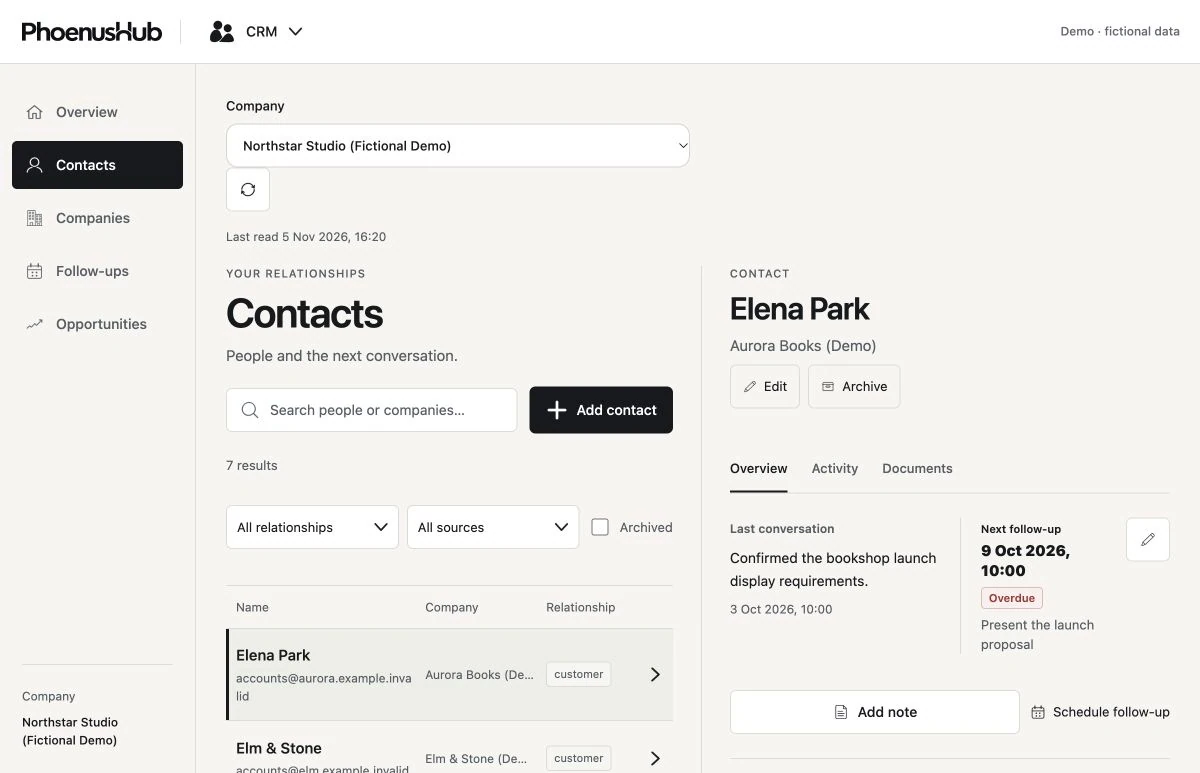
Will customers I already entered in Cashline appear in CRM?
Cashline customers for the selected company can appear automatically in CRM. Filter the directory by Cashline or Manual to see the source. Open the relationship to inspect original source information alongside the details your team saved in CRM.
How do I schedule, complete or reopen a follow-up?
Choose Schedule follow-up, link the person or company, enter the next action and set its due date. In Follow-ups, open the item to edit it, mark it Complete after contact, or Reopen it if further work is needed.
How do sales stages work?
Add an opportunity and choose its stage. As the conversation progresses, use Move to stage to move it through New lead, In conversation, Proposal and Negotiation, then mark it Won or Lost. The stage tracks the sales conversation. Record actual invoices and payments in Cashline.
Can I search or restore archived relationships and activities?
Search Contacts or Companies by name and use the relationship and source filters where offered. Switch to Archived to locate and restore a relationship. In a relationship’s history, include archived history to find archived notes and follow-ups.
How do I organise files for a customer?
Open Customer documents on the customer record. Create folders, upload originals, give files useful names and notes, and search within a folder. You can preview an item and archive or restore files and folders as needed.
Can I put a Cashline original in a CRM folder without uploading it twice?
Yes. In the customer’s document library, open Available Cashline documents and choose Add to folder beside the original. Renaming or organising that link in CRM leaves its original and financial review in Cashline.
Does uploading a document to CRM record a financial transaction?
A direct CRM upload saves an original in the customer’s library. For an invoice, expense or payment that needs accounting review, use Cashline. After review you can link the available Cashline document to the customer’s folder.
My CRM file upload or save was interrupted. What should I do?
Keep the tab open. If you see Check save result, use it before submitting the change again. For a batch upload, use Retry remaining to continue with the files still waiting. Each CRM upload must be between 1 byte and 25 MB.
Why can I see CRM but have no contacts and no Add button?
First check the company, search and filters. An empty directory means there are no matching records to show. Read-only members can view available records. Ask someone with CRM management access to create a contact, company or follow-up, or ask your administrator to review your permissions.
Stock & procurement
How do I organize parts and finished products in Stock?
Create a product dossier, then organize its components under assemblies. Each component can have its own part number, quantity per product, unit, material, manufacturing process, country, technical specifications and estimated unit cost. Use the product record for information shared across the build.
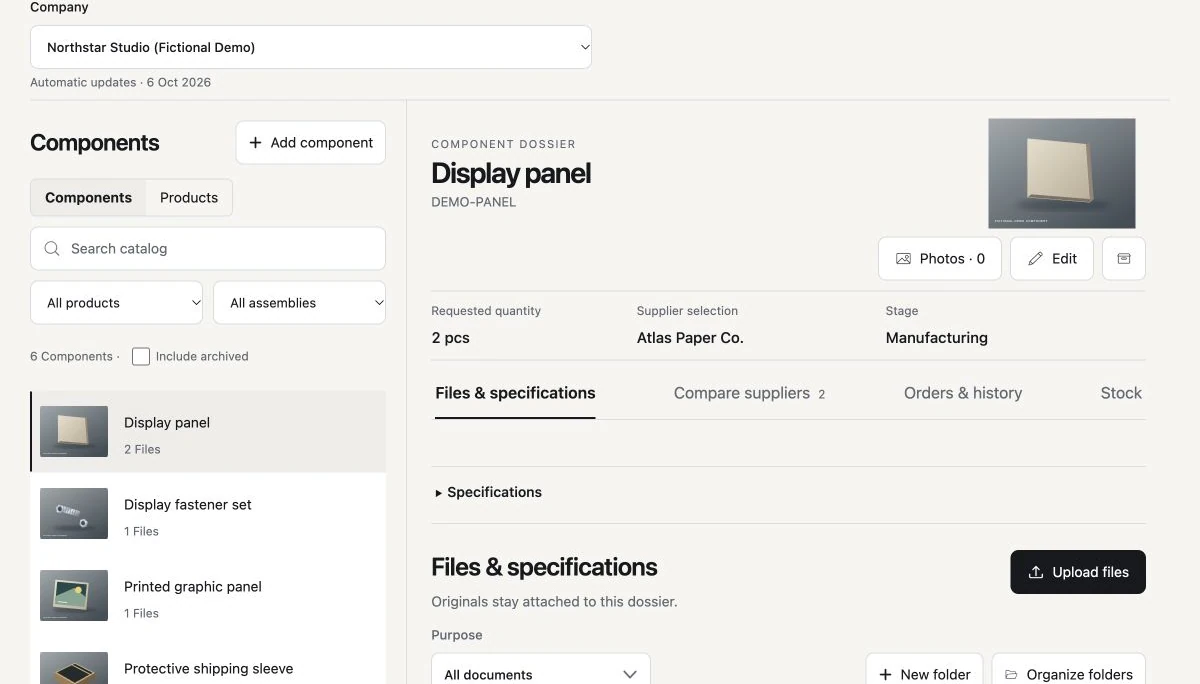
How do I start a dossier from photos or specifications?
In the catalog, choose Add component or Add product, or drop the files on the creation area. Fill in the identifying details and save. For an item that already exists, open that dossier and drop the files there so they attach to the right record.
Where can I find the original drawing, quote or photo later?
Open Files & specifications in the dossier, or search All documents and filter by dossier. Use folders, file types and names to organize originals. Preview or download a file with the appropriate access. For a recognizable catalog thumbnail, set a dossier photo as the cover.
How do I record supplier details and connect a quote to the right part?
Open Suppliers to create or select the supplier and maintain its contact, legal and registration details. In the component dossier choose Link supplier, record the sourcing terms and attach the original quotation to the dossier. One component can have several supplier options.
How can I compare two suppliers' offers fairly?
Open Compare suppliers for the component. Compare unit price and currency, unit of measure, minimum order, lead time, sourcing status and notes. Open each original quotation for freight, taxes and technical terms. Prices are shown in their recorded currencies.
Does selecting a primary or backup supplier place an order?
Supplier roles record your sourcing decision. Use candidate, primary, backup or rejected to distinguish options and keep the quoted terms for reference. Create an order separately once you are ready to record a purchase.
How do I track a part from supplier research to delivery?
Open its dossier and go to Orders & history. Start a procurement activity, record the quantity, priority, expected date and notes about blockers, then update the stage as work moves through sourcing, negotiation, manufacturing, quality checks, shipping, customs and receipt. The stage timeline keeps dated changes.
What should I record on a component order?
Create an order from its procurement activity. Record quantity, unit price, shipping cost, currency and payment status. Use the available dates, terms and tracking fields to follow the shipment. Check the expected date against the recorded receipt if an order appears overdue.
How do I enter a delivery so it actually updates stock?
Open the procurement activity in Orders & history, update its stage and enter the received quantity. Use the warehouse field where applicable. Leaving the quantity empty updates the stage only. Keep the order, payment status and received quantity up to date as separate records.
Where can I set stock levels and replenishment thresholds?
In the component dossier open Stock settings to enter the recorded quantity on hand, warehouse, reorder threshold and reorder quantity. Use the actual delivery workflow for incoming orders. A low balance tells the buyer what needs attention before placing a new order.
How can I find out whether there are enough parts for several builds?
Open Projects in Stock, select the project and link a product with its planned number of builds. Each component’s required quantity is its quantity per product multiplied by the build count. For example, three builds using four brackets each require twelve brackets.
What do Allocated, Available, To allocate and Short by mean?
Allocated here is stock reserved for this project. Available is on-hand stock left after all project reservations. To allocate is this project's requirement minus its existing allocation. Short by is the part of that remainder that today's available stock cannot cover.
How do I reserve parts for a project or release them to another one?
Select the component under the project's requirements and choose Allocate. Enter the total quantity to reserve for that project. Enter zero to release its allocation. If a stock adjustment would take on-hand below the reserved total, release the affected allocations first.
Why does a stock figure say Not recorded?
An unknown unit requirement or unconfigured stock count leaves some calculations blank. Open the component dossier to enter its quantity per product and configure its on-hand stock. Then return to the project to review the calculated requirement and shortage.
Where do unassigned purchases and common inventory appear?
Open Shared stock in Stock's Projects area for company inventory and unassigned procurement. Use Link procurement on a project to connect an existing activity. Its orders and linked originals can then be reached from the project.
What should I do if Stock says a record changed while I was editing?
Use Refresh latest records and inspect the affected dossier, order or allocation. A change may already have been saved. Compare what is present with what you intended before submitting again, especially after a receipt or quantity adjustment.
Can I compare suppliers or check stock on my phone?
Open Stock in your mobile browser and choose the component. Compare suppliers displays the recorded terms in a card for each option on narrow screens. Open Stock in the same dossier for on-hand quantity, warehouse and reorder settings.
Planning
What should I set up first in Planning?
Name the project, choose its first week and identity color, and select the company accounts that need access. Add a task with a clear outcome and an owner. A blank project can start with just that first task.
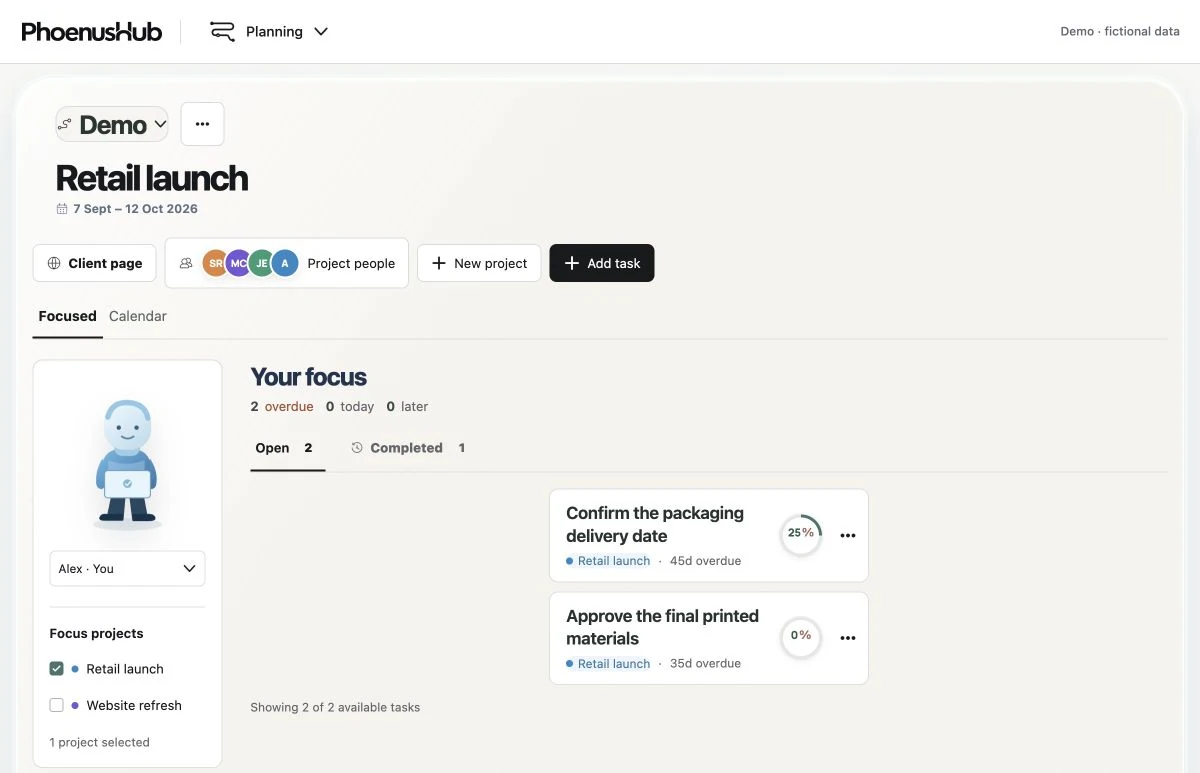
How do I see one person's work across several projects?
In Focus, select the person and check the projects to include. Choose your own name for a personal work list. If the list looks short, use Show all, check the selected projects and look for postponed tasks.
Can I switch between a schedule and a task list?
Use Week or Month to see tasks on the calendar. Switch to the list to find open work across dates. Filter by owner or status, or look at completed work separately. Clear filters if a task appears to be missing.
What belongs in a task?
Give it a title and owner. Set its status, start date and estimated duration in hours or days. Use Notes for dependencies or acceptance criteria, and sub-steps for the individual actions someone needs to complete.
How does Planning calculate progress?
With sub-steps, progress is the share checked off. For example, three of four complete displays 75%. Add at least two sub-steps if you use them. For a task without sub-steps, marking it Done takes progress to 100%.
How do I reschedule work or change its priority?
On the calendar, drag a task to another date to shift its schedule and preserve its duration. Use the task editor to enter dates directly. In the priority list, drag the reorder handle or focus it and use the arrow keys.
What happens when I postpone a task?
Postpone moves its schedule and hides it from Focus until the selected day. The main action selects tomorrow. Open the adjacent menu for other periods. The task stays visible in Week or Month while it is postponed.
Can I hand work to a colleague or move it to another project?
Use Forward to choose another person on the project. Use Move to project when the work belongs to another active project you can access. If the task was on a client page, check its publication settings in the new project.
How do project membership and task assignment differ?
Project people shows who can work on the project. A connected company account can have project access and receive assignments. A Planning-only person can be listed as an owner for scheduling. Manage sign-in accounts and app access through company settings.
Can a teammate have permission to complete tasks without editing everything?
Yes. Actions such as editing details, reassigning work, completing tasks and deleting tasks have separate controls. Your task editor shows the actions available to your account. Ask the workspace administrator for the specific action you need.
How can I review a series of tasks without opening them one by one?
Use Edit tasks in order when it is offered for a list. Save changes to advance to the next task. You can close at the end or leave the sequence earlier after resolving any unsaved changes.
Where do I check whether a Planning update saved?
Open Planning activity. It shows queued and saving changes and flags requests that need attention. Retry the failed update there. If cancellation is offered for a pending action, use it and wait for the result before repeating the edit.
Can I change the picture people see in Planning?
Where character setup is available, open Create your character and follow the photo setup. In a project, the identity color is a separate setting. Changing the color helps people distinguish projects in calendars and task lists.
How do I recover a Planning task I deleted on iPhone?
Open Planning options and choose Deleted tasks. Find the task you removed and choose Restore. Eligible tasks return to their original project with their details and previous priority. If the connection dropped during a restore, use Check this restore to see whether it went through.
Is there a shortcut for task actions on iPhone?
In the iPhone Planning task list, touch and hold a task, then slide to an available action. Tap the task to open its details instead. The actions offered depend on your permissions for that task.
Client project pages
How do I share progress with a client who has no PhoenusHub account?
Open the project in Planning and choose Edit client page. Review its contents, turn on public visibility and save. Open the client page and share its link. Anyone with the link can view a published page without signing in.
What can a client see about the delivery schedule?
The editor lets you set the project title, client, location, status, summary and current focus. Set both planned completion and the current forecast so the client can see the original target alongside your latest estimate.
How do milestones contribute to the client's overall progress figure?
Give each visible milestone a target date and a weight, with visible weights totaling 100%. Choose Planning tasks to calculate milestone progress from its work, or Manual to enter a percentage yourself. Adjust the order to reflect your delivery sequence.
How do I choose which tasks appear on a client page?
Review Public Planning tasks in the page editor, including completed tasks. Show or hide individual tasks. In Planning, use the task's client-page settings to select a milestone and sub-category. Review task details, dates and sub-steps before making them visible.
Can I share a delivery, meeting or update without making it a team task?
Yes. Add an extra date under calendar items, such as a delivery, meeting or test. Milestone dates already appear in the calendar. Use project updates for dated written news and attach media when it helps explain what changed.
How do I publish progress photos or videos?
Open Media in the client-page editor. Select the files, review each public name, caption and date, and remove any item you do not want to share. Choose Publish all and wait for completion. Check the gallery on the client page afterward.
How can I take a client page offline?
Open Edit client page, turn off public page visibility and save. Open the client link signed out to check the result. To keep the page available but withdraw one item, hide the task, milestone or calendar entry, or remove a photo or video from the gallery and from any public updates that use it.
Quarterday
How do I start tracking labour on a project?
In Quarterday, create or select the project. Set its currency and hours per full day. In Team, add each worker with a name, hourly rate and optional role. Then open Log time and choose the date of the work.
How many hours is a quarter day?
It is one quarter of the full day set for that project. On an eight-hour day, a quarter, half and three-quarter day represent two, four and six hours. Set the full day under Settings, Details if your team uses a different schedule.
Can I record overtime or a shift that doesn't fit the standard fractions?
Choose Custom hours on the worker’s row and enter the actual hours, up to 24 for that date. A ten-hour shift on an eight-hour project day can be entered as 10. Cost uses the recorded hours and hourly rate.
Can two people work on the same date and have different notes?
Yes. Choose One person, select the worker and date, and save that person’s hours and note. Repeat for the other worker. A shared day note is also available for details that apply to everyone. Older day-level notes remain shared.
How do I enter a whole crew without typing the same shift repeatedly?
Choose Whole team on the day you want to log. Use Apply to everyone to set a common fraction or custom number of hours. Adjust anyone who worked a different shift, review the individual rows and save.
How do I calculate the cost of a day's work?
Quarterday multiplies each person's hours by the rate recorded for that entry and adds the results in the project currency. Three hours at 20 per hour and five hours at 30 per hour give a total labour cost of 210.
What if I know the hours before I know the hourly rate?
When setting up the worker, enter zero and select Rate to confirm for a provisional rate. The overview flags costs that use provisional rates. Once the rate is agreed, an authorized user can open the recorded entry and choose Confirm rate for this entry.
Will changing a worker’s rate or our standard day reprice earlier work?
Existing entries retain their recorded rate and day length. New entries use the current project and worker settings. Check the dated entry and correction history when you need to explain why two periods have different costs.
Can I change the currency after people start logging time?
The currency becomes fixed once the project has time entries. For work billed in another currency, create a separate project with that currency and keep the existing project as the record of the earlier work.
Where can I see remaining labour cost and who worked?
Overview shows unpaid hours, equivalent days, labour cost, days logged and people with outstanding time. The team breakdown shows each person's recorded contribution. After a partial payment, compare that breakdown with the outstanding total, which accounts for the allocation.
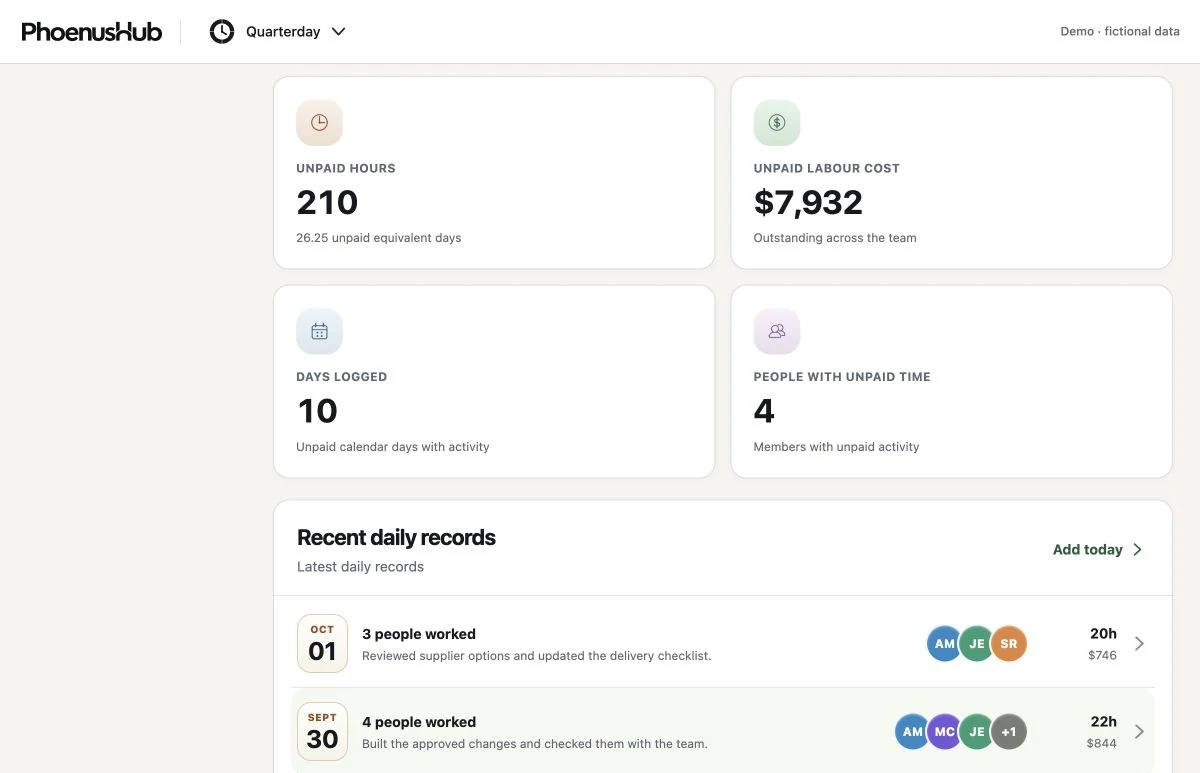
How do I mark labour paid through the end of a month or a particular day?
In Settings, Settlement, choose a completed logged month or enter an exact cutoff date and save payment status. The cutoff covers all recorded work through that day. The unpaid overview starts on the following day. Record any actual payment separately in Cashline.
Can I match a real Cashline payment to labour, including a partial payment?
For a project linked to an active company project, choose a settlement cutoff, then Link existing transaction. Select the outgoing company payment, enter an exchange rate if needed, and review the payment and labour balances. Enter the amount to allocate and confirm. The comparison is advisory.
What if I link the wrong payment or the confirmation is interrupted?
Use Review linked payments to inspect the recorded allocations. Remove the incorrect allocation and confirm to release that amount back to the payment. The original transaction stays in Cashline. If a confirmation was interrupted, use Check saved link before submitting anything again.
Where can I check who corrected hours, notes or rates?
Open History, then Correction history. Expand an event for its date, the person who made the change and the before-and-after values. You can include multiple projects and, with export permission, download the recorded correction history.
What can I export for payroll review or for my own records?
Use Export CSV to get the selected project’s totals by person and daily detail. Choose all time, this month, last month or a custom date range. Under Settings, Exports & archive, the JSON backup includes Quarterday projects, their teams, settings and entries.
How should I handle a worker who leaves?
Archive the worker in Team so earlier time and costs remain available for reports. An archived person can still appear on an earlier date where their work was recorded. Use Restore in the team list when they return to the project.
What if two people edit the time records at once?
If Quarterday reports a conflict, use Compare with saved version. Review the affected project's saved version and your draft, decide which to keep, and save the reviewed version. Wait for the saved status before relying on the new totals.
How do I correct one worker’s hours without removing the whole day?
On the web, reopen the saved date, choose One person and edit that person's hours or note. Choose Whole team to correct the shared day note. The separate Remove daily entry action applies to everyone on that date, so use it only when the entire daily record should be removed.
What should I do with a completed Quarterday project?
In Settings, open Exports & archive to download a report and archive the project. Recorded time and costs remain available in History and exports. Restore the project if your team needs to resume recording work.
Company projects
When should I create a company project instead of an app-only project?
Choose a company project when the same job needs a shared identity in several apps, for example a customer installation with a budget, tasks, materials and labour. Choose This app only or Stock only for work that belongs solely in that app.
How do I connect an existing job across apps instead of creating duplicates?
Open the project selector in Planning or Quarterday and choose the existing company project for the correct operating company. In Company projects you can connect an existing local project or activate the company project in this app. Use the existing link if it already shows as active.
Which app should I use for a project's budget, tasks, labour, materials and customer?
Cashline tracks project finances and tagged transactions. Use Planning for tasks and client updates, Quarterday for time and labour cost, Stock for builds, component needs and procurement, and CRM to link the customer relationship. Select the same company project in the apps involved.
Who sees the details when I share a project across apps?
The company directory makes the project name available to authorized users in its apps. Each app controls access to its underlying records, such as rates, tasks, stock and financial documents. Publishing a client page is a separate decision with its own visibility settings.
Can I see a customer’s projects from CRM?
Open the contact or company in CRM and look for its projects. With management access, select Link project and choose the existing company project. A customer relationship can point to existing projects without making a new financial or operational record.
How do I take a finished project out of the active list?
Open Manage projects in Cashline, Planning, Stock or Quarterday. Check the selected company, choose the active project and select Archive. To bring it back, open Archived and choose Restore. Check whether the project is shared before changing its status.
How do I delete a project, and how long do I have to recover it?
With deletion permission, open Archived in Manage projects, select Delete, check the project name, and type DELETE to move it to Trash. A shared project moves to Trash in its linked apps. Within 30 days, choose Restore to Archived in Trash. From Archived you can restore it to active use.
Privacy, data & support
Can customers or other companies see my workspace?
Workspace records require signed-in access and the appropriate company and app permissions. A client project page is a separate sharing option. The information you choose to publish there can be viewed by anyone with its link.
Who owns the documents and records I upload?
You retain the rights to the content you submit. The Terms give Phoenus S.L. the limited rights it needs to store, process, back up and display that content to provide the service. Your company is responsible for its accuracy and for having permission to upload it.
Read the terms of serviceCan I download my company’s records and original files?
Open company settings and choose Data export. Request the archive, then return to check its status and download it when ready. It includes the records and originals you have permission to export. If the download expires, create a new export.
Privacy and access rightsWhere can I see what personal information is collected?
The Privacy Policy describes account identity, membership, records, uploads, support conversations, security logs and billing references. It explains how information is used, which providers may process it and how long it may be kept.
Read the privacy policyHow do I ask for a copy of my personal data or request deletion?
Email support@phoenushub.com from your account address and describe the information or company concerned. Support may verify your identity. Closure and deletion requests are handled under the Privacy Policy, including applicable legal and record-retention requirements.
Email supportIs my Planning character photo visible to everyone?
Creating a character is optional. With your consent, the source photo is sent for image generation. PhoenusHub stores the generated character, which active Planning teammates can see. The Privacy Policy explains source-photo handling and the image provider’s retention terms.
How do I report an issue or suggest a feature?
From your workspace, open support and choose Report an issue, Share feedback or Contact support. For an issue, include the app, the steps you took and what happened. You can review and annotate a screenshot before sending it.
How can I get help if I can’t sign in?
Email support@phoenushub.com with the sign-in method, the account email and the message you see. Leave out passwords, secure sign-in links and full card details. If you can sign in, use the support conversation in the Hub.
Email supportCan I report a problem from the iPhone app?
In builds with Shake to contact support enabled, shake the iPhone to open a report. Review the screenshot and your description before sending. You can change the shake preference if you prefer opening support yourself.
Where do I find a reply to my support request? Can I send a voice message?
Open support and choose your original thread under Your conversations to read the reply or add more detail. In the support chat, use the microphone to record a voice message or the attachment button to add a screenshot. Preview the attachment before sending.